
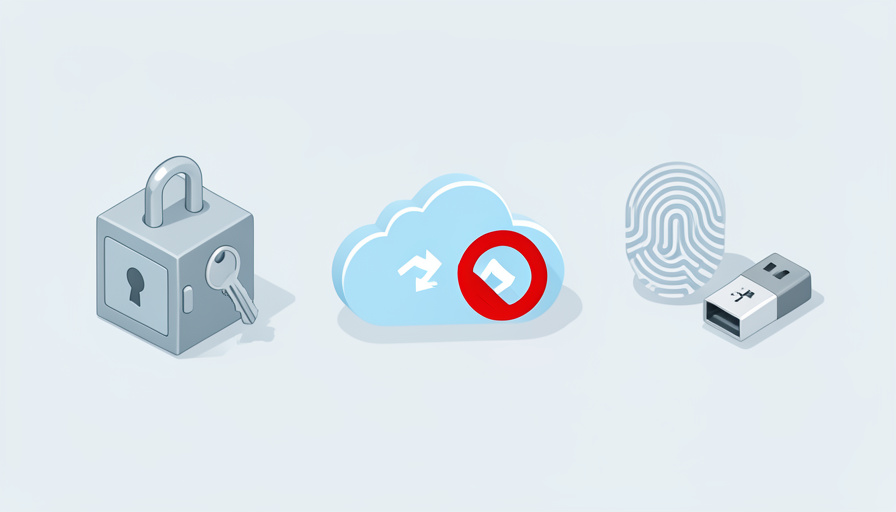
You set up a passkey on your work laptop, and it felt like the future: no password, just your fingerprint, done. Then you tried to sign in to the same account from the desktop at your other desk, and the passkey was nowhere to be found. IT disabled browser sync months ago for security, and that one setting quietly stranded your passkey on a single machine. Now you are stuck deciding how to log in everywhere without the convenience you were promised.
The password manager vs passkeys workplace decision gets trickier the moment your IT department turns off browser sync, because the smooth, cross-device passkey experience depends on exactly the syncing your company just disabled. That does not mean passkeys are off the table; it means you need to choose the storage method that still works in a locked-down environment. Here is how synced and device-bound passkeys differ, when a password manager is the smarter pick, and a framework for deciding.
Quick Take
- Synced passkeys rely on a cloud keychain, so if IT blocks browser and OS sync, they can end up stranded on one device.
- A third-party password manager stores passwords and passkeys and syncs through its own encrypted cloud, working around blocked browser sync, if your workplace allows the app.
- A hardware security key holds device-bound passkeys that need no sync at all, making it the most reliable option in the most restricted setups.
Table of Contents
Why Blocked Browser Sync Changes the Decision
A passkey is a login credential stored on a device, and its convenience comes from copying across your devices automatically. Synced passkeys live in a cloud keychain, iCloud Keychain, Google Password Manager, or Microsoft’s, and those keychains ride on the same account sync that many workplaces disable for control and data protection. When IT turns off browser or OS sync, a passkey created on one machine has no path to your others, so it behaves as if it were locked to that single device. The credential still works; it just will not travel, which defeats the point on a multi-device workday.
Synced vs Device-Bound Passkeys
The core distinction decides everything here. A synced passkey copies across every device signed into your cloud account, which is convenient but dependent on that sync being allowed. A device-bound passkey stays on one piece of hardware, typically a USB security key, and never syncs, which makes it harder for a remote attacker to reach but means losing the hardware without a backup locks you out. The FIDO Alliance’s overview of passkeys lays out both. In a workplace that blocks sync, the “synced” advantage disappears, and the choice narrows to a password manager or a device-bound key.
When a Password Manager Is the Better Choice
If your workplace allows a third-party password manager, it is often the most practical answer, because it sidesteps the blocked browser sync entirely. Managers like Bitwarden, 1Password, and Dashlane store both your passwords and your passkeys, and they sync through their own encrypted cloud rather than the browser or OS keychain your company disabled. That means a passkey you save in the manager is available on every device where you install it, regardless of IT’s sync policy. Bitwarden’s guide to storing and using passkeys shows how the manager becomes your passkey home. The catch is that the workplace must permit the app or extension.
When Passkeys or a Hardware Key Win
In the most locked-down environments, where even third-party password managers are blocked, a hardware security key is the reliable route. A device-bound passkey on a USB or NFC key needs no sync at all: you carry the physical key and plug or tap it into whatever machine you are using, so it works across devices without any cloud copying. That portability is exactly what a no-sync policy cannot break. The trade-off is that you must buy the key, and you should register a second backup key, because losing your only one with no fallback means being locked out of every account tied to it.
A Step-by-Step Decision Framework
Rather than guess, work through what your environment actually permits:
- Confirm what is blocked. Ask IT, or test, whether browser sync, OS keychain sync, third-party password manager extensions, and passkey registration are each allowed.
- If a password manager is permitted, use it for passwords and passkeys, since its own sync bypasses the blocked browser sync and keeps you portable.
- If managers and sync are blocked, get a hardware security key for device-bound passkeys, and register a backup key at the same time.
- If passkeys themselves are blocked, fall back to strong unique passwords in whatever manager is allowed, paired with an authenticator app for multi-factor login.
- Check whether the account is managed. Work-managed accounts may have their own passkey rules that override your personal preference.
At a Glance: Which Option Survives Blocked Sync
| Option | Needs browser/OS sync | Works when sync is blocked | Portable across devices | Best when |
|---|---|---|---|---|
| Synced platform passkeys | Yes | No (stranded on device) | Only with sync on | Sync is allowed |
| Password manager (passwords + passkeys) | No (uses own cloud) | Yes, if app is allowed | Yes | Manager is permitted |
| Hardware security key | No | Yes | Yes (carry the key) | Sync and apps are blocked |
| Passwords + authenticator app | No | Yes | Yes | Passkeys are blocked |
Keep Work and Personal Accounts Separate
One rule holds across every setup: do not blur work and personal credentials. Storing work passkeys in a personal password manager, or vice versa, can violate company policy and complicate offboarding, and it mixes data your employer may need to control with data you want to keep. Use the workplace-sanctioned method for work accounts and your own choice for personal ones. If you rely on a password manager for both, keep separate vaults or accounts so the boundary stays clean. This separation matters as much for compliance as for your own peace of mind.
Frequently Asked Questions
Why won’t my passkey sync between my work devices?
Almost certainly because your workplace disabled browser or operating-system sync. Synced passkeys are stored in a cloud keychain like iCloud Keychain or Google Password Manager, and those depend on account sync being turned on. When IT blocks that sync for security, a passkey created on one device has no way to copy to your others, so it stays put. The credential still works on the machine where you made it; it simply cannot travel. To get cross-device access, store passkeys in a permitted password manager or use a hardware key instead.
Can I store passkeys in a password manager instead of my browser?
Yes. Major password managers, including Bitwarden, 1Password, and Dashlane, support saving and using passkeys as of 2026, and they sync through their own encrypted cloud rather than your browser’s sync. That is exactly why they help in a workplace that blocks browser sync: the manager becomes your passkey storage and carries them to any device where you install it. The requirement is that your workplace allows the password manager app or browser extension. If it does, this is usually the most convenient way to keep passkeys portable.
Is a hardware security key worth it just for work logins?
In a strict environment, often yes. A hardware key holds device-bound passkeys that need no sync, so it keeps working when browser sync and even password-manager apps are blocked, and you simply carry it between machines. It also offers strong phishing resistance. The downsides are the cost and the need for discipline: buy two keys and register both, so a lost key does not lock you out. For someone whose workplace blocks nearly everything else, a pair of hardware keys is a dependable and secure solution.
Are passkeys more secure than a password manager?
They protect against different things, and the strongest setup often uses both. Passkeys are phishing-resistant by design, since there is no password to steal or trick you into entering on a fake site, which is a real advantage over a typed password. A password manager, meanwhile, generates and stores strong unique passwords and, increasingly, your passkeys too, in one encrypted place. For accounts that support passkeys, using them is a security upgrade; for those that do not, a password manager with long random passwords remains the safe baseline. The two complement each other rather than compete.
Choose for the Environment You’re In
Blocked browser sync does not force a single answer; it just rules out relying on platform passkeys that quietly depend on the sync your company turned off. Start by finding out what your workplace actually permits, then match the method to it: a third-party password manager when the app is allowed, a pair of hardware keys when it is not, and strong passwords with an authenticator app if passkeys are blocked entirely. Keep work and personal credentials in separate places, and you get security that fits the constraints instead of fighting them. For more on going passwordless, see our guide to passwordless login options without SMS, or browse Wayodd’s Software section.