
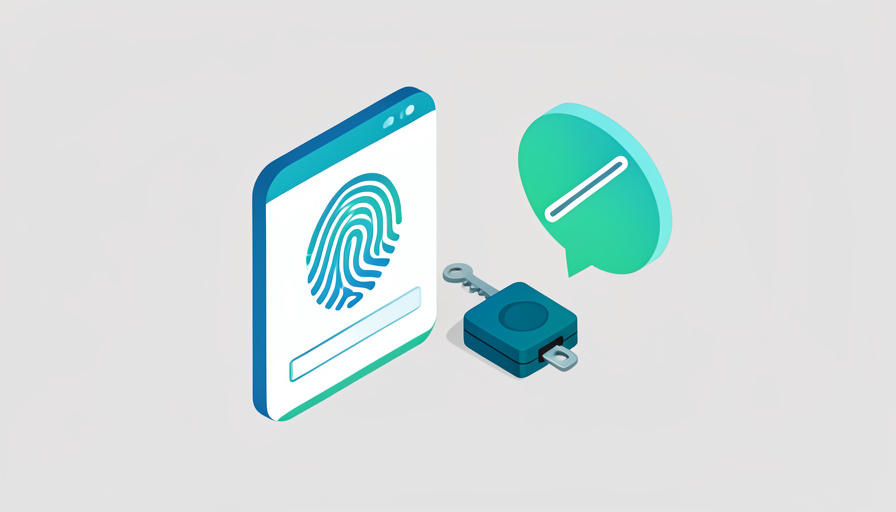
The text-message code was never very safe, and in 2026 you finally have better options that skip your phone number entirely.
This guide to passwordless login options 2026 focuses on methods that skip SMS codes completely. Texted codes are easy to intercept, vulnerable to SIM-swap attacks, and prone to not arriving when you need them, which is why the security world keeps steering people away from them. The alternatives below range from tap-to-approve prompts to cryptographic passkeys, and most work on a device you already own. Here are eleven ways to log in without ever waiting on a text.
Quick Picks
- Most secure and easy: passkeys, backed by your face or fingerprint.
- Most secure, period: a hardware security key for your most important accounts.
- Easiest upgrade from SMS: an authenticator app or a push approval.
Table of Contents
How We Chose These
Every option here had to clear the same bar. First, it has to skip SMS completely, since avoiding the texted code is the whole point. Second, it should resist the attacks that make SMS risky, especially phishing and SIM swaps. Third, it needs to run on hardware people already carry, like a phone or a laptop, rather than demanding a special purchase. Finally, it has to be supported widely enough to actually use today and simple enough that a non-expert can set it up. The methods are ordered roughly from the strongest and most future-proof to the most familiar.
1. Passkeys Synced Across Your Devices
A passkey is a login credential built on the FIDO2 and WebAuthn standards that replaces the password entirely. Your device keeps a private key, the site keeps only a public key, and you sign in with your face, fingerprint, or PIN. Because nothing reusable is ever sent, passkeys cannot be phished or stolen in a data breach. They sync across your devices through your platform account, so a new phone still has them. The catch is that support, while growing fast, is not universal yet.
2. A Hardware Security Key
A security key is a small physical device, often USB or NFC, that proves it is really you when you tap or plug it in. It uses the same FIDO2 standard as passkeys but keeps the credential on a dedicated piece of hardware, which makes it the strongest option for high-value accounts. The trade-offs are real: you have to buy one, carry it, and ideally own a backup in case it is lost.
3. Your Face or Fingerprint
Platform biometrics, like Face ID, Touch ID, and Windows Hello, let your device verify you locally and unlock a login without a password. It is fast and familiar, and it is the piece doing the work behind most passkeys. On its own, biometric unlock is tied to one device, so it works best as the front end for a passkey rather than a standalone account login.
4. An Authenticator App Code
An authenticator app generates a six-digit code that changes every thirty seconds, entirely on your phone with no text message involved. It is a big step up from SMS because the codes never travel over the cell network and cannot be SIM-swapped. The weak spot is that a convincing fake login page can still trick you into typing a code, so it resists SIM swaps while stopping short of full phishing protection.
5. A Push Approval on Your Phone
Instead of typing a code, you get a notification that asks, in effect, is this you, and you tap approve or deny. It is quick and pleasant to use, and better versions show details about the login so you can spot a fake. The risk to know about is approval fatigue, where people tap yes out of habit, so the safest versions add a number-matching step to keep you paying attention.
6. An Email Magic Link
A magic link skips passwords by emailing you a one-tap sign-in link. There is nothing to remember and nothing to type, which is why many apps use it for a low-friction first login. Its security is only as strong as your email account, though, so it is a fine convenience for lower-stakes services and a poor choice if your inbox itself is weakly protected.
7. A One-Time Code by Email
A close cousin of the magic link, an emailed one-time code drops a short code in your inbox to paste in. It shares the same strength and the same ceiling: convenient, with no phone number required, but bounded by how well your email is secured. Treat it as a step above SMS rather than a top-tier method.
8. A QR Code You Scan
Some services let you log in on a computer by scanning a QR code with an app already signed in on your phone, the way messaging apps open on the web. It is genuinely passwordless and quite phishing-resistant, since the trusted app confirms the session. The limitation is simple: it only works where a service has built it, and you need your phone in hand.
9. Sign In With Google, Apple, or Microsoft
Federated sign-in lets you use one trusted account to log in elsewhere, so a single strong login covers many sites. It cuts the number of passwords in your life and inherits whatever protection you put on that main account, which is a real plus if that account uses a passkey. The downside is concentration: that one account becomes a single point of failure, so it deserves your strongest protection.
10. A Passkey in Your Password Manager
Password managers such as 1Password and Bitwarden can now store passkeys themselves, syncing them across every device where the manager runs, including mixed setups of Windows, Mac, Android, and iPhone. That solves the cross-platform gap that ties native passkeys to one ecosystem. You are trusting a password manager with the keys, so its own login needs to be locked down tightly.
11. A Trusted-Device Prompt
Some accounts let a device you have already verified vouch for a new sign-in, showing a prompt on your phone or laptop that you approve. It leans on the fact that you are already holding trusted hardware, which makes it convenient for re-authenticating. Like other approval prompts, its weak point is habit, so only approve a request you actually started.

How the Methods Compare
| Method | Phishing-resistant? | What you need |
|---|---|---|
| Passkeys | Yes, strongly | A supported device |
| Hardware security key | Yes, strongest | A key you buy and carry |
| Authenticator app or push | Partly | Your phone |
| Magic link or email code | Depends on your email | A secure inbox |
| Federated sign-in | Inherits your main account | One strong account |
Frequently Asked Questions
What is the safest passwordless login option?
Passkeys and hardware security keys are the safest, because both use the FIDO2 standard and cannot be phished or stolen in a server breach. A hardware key is the strongest choice for your most important accounts, while synced passkeys give almost the same protection with more convenience.
Why is SMS 2FA considered unsafe?
Texted codes can be intercepted, redirected through SIM-swap attacks where someone takes over your phone number, or captured by a fake login page. They also simply fail to arrive at times. Security guidance increasingly recommends passwordless methods over SMS for those reasons.
Are passkeys and biometrics the same thing?
No, but they work together. A passkey is the cryptographic credential that logs you in, and biometrics like Face ID or a fingerprint are the local check that unlocks it on your device. Your face or fingerprint never leaves the device or reaches the website.
Do passwordless logins work across different brands of device?
Increasingly, yes. Native passkeys sync within one ecosystem, and a password manager that stores passkeys can carry them across Windows, Mac, Android, and iPhone. Hardware security keys also work anywhere with a USB or NFC connection, regardless of brand.
Can I stop using SMS codes entirely?
For many accounts, yes, if the service offers a passwordless option and you set up a backup method. Keep a recovery path, such as a second security key or saved recovery codes, so losing one device does not lock you out while you move away from SMS.
The Password-Free Takeaway
The through-line across all eleven is simple: you no longer need a texted code to log in safely, and the strongest options are also some of the easiest. If you do one thing, turn on passkeys where they are offered and add a hardware key to the accounts you cannot afford to lose. For more on security and software, browse Wayodd’s Software section. The password, and the shaky text code that propped it up, are both finally on the way out.