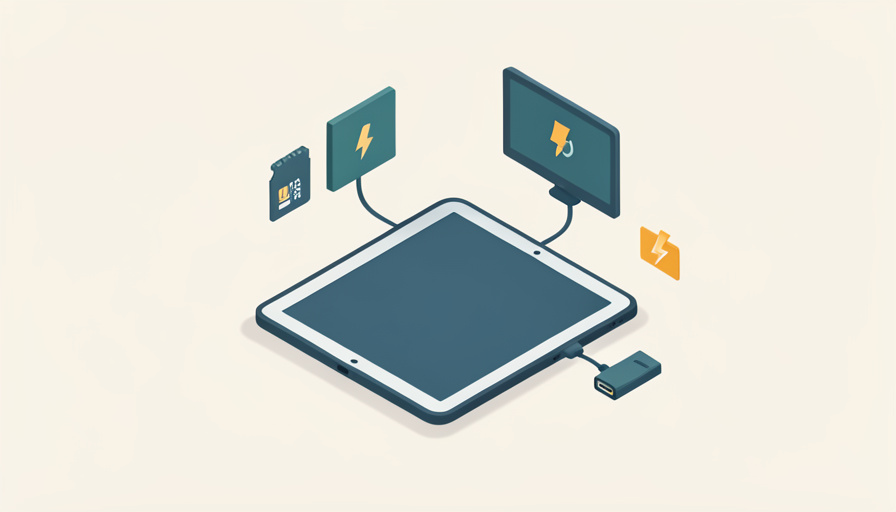

Two hubs can look identical on the shelf and behave nothing alike once they meet an iPad Pro. One drives your monitor and keeps the battery climbing; the other mirrors a blurry screen while the iPad slowly drains.
Comparing USB C hub iPad Pro specs before you buy saves you from a dock that will not drive your display or charge fast enough to keep up with real work. The iPad has one port doing every job, so the hub you attach decides what the iPad can actually do. These are the nine specs to check, mapped to how you use the iPad rather than the marketing on the box.
Quick Take
- Power passthrough wattage and the display spec matter most, since a weak hub either starves the battery or caps your monitor.
- The M4 iPad Pro has a Thunderbolt port, while earlier models use slower USB-C, so match the hub to your iPad.
- For creative work, card-reader speed, data-port speed, and a headphone jack often decide the choice.
Table of Contents
How We Chose These
We focused on the specs that actually change what an iPad Pro can do through a hub, not the number of ports for its own sake. Each one maps to a real task, charging, driving a display, offloading cards, or recording audio, and each is something you can confirm on the product page before buying. They run from the specs that make or break the setup to the practical details that decide daily comfort.
1. Power Delivery Passthrough Wattage
The hub needs a USB-C input that passes enough power to keep the iPad charging while everything else runs. Aim for a high passthrough rating, and know that hubs lose some to overhead, so a 100-watt input might deliver closer to 80 to the iPad. Apple’s notes on the USB-C port on iPad cover charging and connecting at once.
2. External Display Resolution and Refresh
An M-series iPad Pro can drive a genuine extended display, up to 6K at 60Hz on the newest model, so the hub must not be the bottleneck. Check that its HDMI or DisplayPort output does 4K at 60Hz rather than a choppy 4K at 30, and confirm the iPad supports the resolution you want when you connect a display.
3. Thunderbolt Versus Plain USB-C
The 2024 iPad Pro uses a Thunderbolt port at 40 gigabits per second, while the M1 through M3 models use USB-C at 10. A Thunderbolt hub unlocks the fastest external drives and displays, but it costs more and is wasted on an older iPad. Match the hub’s standard to what your specific iPad actually supports.
4. Data-Port Speed
Not every USB port on a hub is fast. A port running USB 3.2 moves data at 5 to 10 gigabits per second, while a cheap USB 2.0 port crawls at 480 megabits, which is painful for an external SSD. If you move large files, confirm the data ports are the fast kind rather than simply present.
5. SD Card Reader Standard
For photographers and videographers, the card reader’s standard decides how long offloads take. A UHS-II reader is roughly three times faster than the common UHS-I, which turns a coffee-break transfer into a quick one. If you shoot to SD cards, treat a UHS-II slot as a feature worth paying for.
6. Powered Versus Bus-Powered
A bus-powered hub draws everything from the iPad, which is fine for a monitor and a card, but hungry gear like bus-powered drives can overwhelm it. If you run multiple demanding devices, choose a hub with its own power input or strong passthrough so nothing drops out mid-task.
7. The Port Mix
Count the ports you will really use rather than the biggest number. HDMI for a screen, a fast USB-A and USB-C for drives, Ethernet if your Wi-Fi is unreliable, and a 3.5mm headphone jack, which matters because the iPad Pro dropped its own. The right mix beats a hub crowded with ports you will never touch.
8. Charging Overhead and Heat
Every hub keeps a little power for itself and gives off heat under load. The number that matters is the usable wattage reaching the iPad after that cut, and whether the hub runs so warm that it throttles. Look for a stated delivered-power figure, and read reviews about heat if you plan long sessions.
9. Form Factor, Cable, and Case Fit
A rigid dongle that plugs straight in can strain the port and may not clear a thick case, while a hub on a short cable sits flat and flexes less. Think about where the iPad lives, on a stand or in your hands, and pick a shape and cable length that fits without fighting your case.
The Takeaways
- Prioritize power passthrough and the display spec, since they decide whether the iPad charges and drives your monitor.
- Match Thunderbolt or USB-C to your exact iPad model, because a Thunderbolt hub is wasted on older ones.
- For media work, check data-port speed and a UHS-II card reader, and remember the headphone jack.
- Weigh powered versus bus-powered, real usable wattage, and a form factor that fits your case.
Frequently Asked Questions
Will any USB-C hub charge my iPad Pro?
Not equally. The hub must have a USB-C passthrough input, and it should pass enough wattage to keep the iPad charging while other devices run. Hubs lose some power to overhead, so aim high on the input rating and check the delivered figure rather than assuming any hub keeps the battery up.
Can a USB-C hub give my iPad Pro a second screen?
Yes, an M-series iPad Pro supports a true extended display rather than mirroring, up to 6K at 60Hz on the latest model. The hub’s HDMI or DisplayPort output has to support the resolution and refresh you want, so confirm it does 4K at 60Hz rather than 30 before buying.
Do I need a Thunderbolt hub for my iPad Pro?
Only if your iPad has a Thunderbolt port, which the 2024 model does and earlier ones do not. Thunderbolt adds bandwidth for fast drives and high-end displays, but it costs more and gives no benefit on an M1 to M3 iPad Pro. Match the hub to your specific model.
What card reader do I need to offload photos fast?
Look for a UHS-II SD reader, which is around three times faster than the common UHS-I. For large photo and video cards that difference is significant. If your cards are UHS-II, a UHS-I reader will bottleneck them, so the reader standard is worth checking closely.
Why does my iPad get warm or lose charge with a hub attached?
Hubs consume some power and generate heat, and a low passthrough rating can mean the iPad draws down faster than it charges. Running several demanding devices makes it worse. Choose a hub with strong passthrough and, for heavy use, one with its own power input to keep the iPad topped up.
Match the Hub to the Work
The best hub for an iPad Pro is the one that fits how you actually use it, not the one with the longest spec list. Nail the power passthrough and the display output first, match Thunderbolt or USB-C to your model, then let your workflow decide the card reader, ports, and shape. Check those nine specs and the hub disappears into the job instead of getting in its way. For more on picking gear that earns its place, browse Wayodd’s Gadgets & Tech section.














































No Comments
Leave a comment Cancel