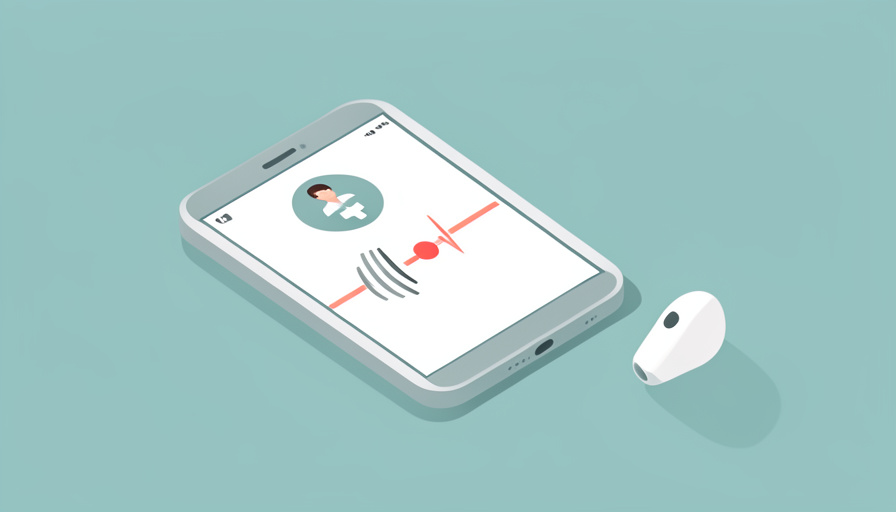

You waited two weeks for the appointment, got the video call connected, and then your earbuds betrayed you. The doctor’s voice stutters, cuts to silence, drops every few words, and you find yourself saying “sorry, could you repeat that” for the third time while a medical professional’s time ticks away. The moment you disconnect the earbuds and hold the phone to your ear, it is crystal clear. Something about the Bluetooth is turning an important conversation into a garbled mess, and it always seems to happen on calls.
When your telehealth audio keeps cutting out the instant your Bluetooth earbuds are connected, the culprit is almost always the same hidden switch: to use the earbud microphone, your phone drops from high-quality audio into a lower-quality call mode that is far more fragile. Once you understand that, the fixes make sense. Here is why it happens and how to stop it on both iPhone and Android, so your next appointment does not become a game of broken telephone.
Quick Take
- Bluetooth switches to a lower-quality “call” mode when an app uses the earbud mic, which is what makes call audio drop where music plays fine.
- The fastest fixes: reduce nearby interference, re-pair the earbuds, and, if needed, use the earbuds only to listen while the phone handles the microphone.
- A reliable fallback is to use wired earbuds or the phone’s own speaker and mic, or dial in by phone if the platform offers it.
This is device troubleshooting, not medical advice. If a call drops during an urgent appointment, reconnect or phone your provider directly, and contact them or emergency services for any health concern that cannot wait.
Why It Happens: The Hidden Audio Switch
Bluetooth earbuds run in two modes. For music and video playback they use a high-quality stereo mode, but the moment an app needs the microphone, as a telehealth call does, they drop into a call mode that is mono and much lower quality, because the connection now has to send your voice as well as receive sound. This call mode is more sensitive to interference and distance, which is exactly why audio that is perfect for music stutters and cuts during a call. So the problem is not that your earbuds are broken; it is that a call forces a fragile mode. Most fixes come down to making that mode more stable or avoiding it.
Step 1: Reduce Interference
Bluetooth shares crowded airwaves with wifi and other devices, and the weaker call mode suffers most from interference. Move away from your wifi router and microwave, keep your phone on the same side of your body as the earbuds so it is not blocked, and put down any other Bluetooth gadgets nearby. If you are near a computer, USB 3 devices and hubs are a known source of interference in this frequency range, so move away from them too. Simply changing where you sit for the call, closer to the phone and away from other electronics, resolves a surprising number of cut-out problems on its own.
Step 2: Re-Pair the Earbuds
A glitchy pairing is a common cause, and refreshing it is quick. On your phone, forget the earbuds in the Bluetooth settings, then put them back in pairing mode and connect again from scratch. This clears a confused connection that may be struggling to hold the call mode. While you are there, make sure only the earbuds you want are connected, since a phone juggling several paired devices can hand audio to the wrong one or split its attention. A clean, single, freshly made pairing is more stable than one that has been reconnecting automatically for months.
Step 3: Update Your Phone and Earbuds
Outdated software on either device causes audio bugs that updates often fix. Check for a phone operating-system update and install it, then update your earbuds’ firmware, which is usually done through the companion app for your specific brand. Manufacturers regularly ship fixes for exactly this kind of call-audio instability. If your earbuds have no companion app, the phone update alone still helps. Keeping both current is one of the highest-value steps, because a known dropout bug that a firmware update already solved will keep happening until you actually install it.
Step 4: Let the Phone Handle the Microphone
Here is the clever workaround for the mode problem: separate listening from speaking. If your earbuds keep dropping in call mode, use them only to hear, and let the phone’s own microphone capture your voice. Some earbuds and phones let you set this, and in many telehealth apps you can choose the audio input separately from the output. Speaking into the phone while listening through one earbud avoids forcing the fragile two-way call mode. It feels slightly unusual, but it sidesteps the exact switch that causes the cut-outs, and the audio you hear stays stable throughout the appointment.
Step 5: Check App and Browser Audio Settings
If your telehealth visit runs in an app or a web browser, the audio device it uses matters. In the app or the browser’s site settings, confirm it has microphone permission and that the selected input and output are the ones you intend, since it can default to the wrong device. In a browser, an incorrect microphone selection often causes exactly this kind of trouble. Also close other apps that might grab the microphone or audio in the background. Taking a moment before the call to set the right input and output, and to grant permissions, prevents the platform from fighting your Bluetooth for control.
iPhone and Android Quick Settings
A few platform-specific toggles help. On iPhone, open Settings and Bluetooth, tap your earbuds, and check their options; turning off automatic ear detection can stop unexpected audio switching, and toggling Bluetooth off and on resets the connection. On Android, disable battery optimization for your telehealth app so the system does not throttle its Bluetooth in the background, and check your Bluetooth device settings for call-audio options. On both, a simple restart of the phone clears many transient audio glitches. These small settings, combined with the steps above, cover the large majority of Bluetooth call-audio cut-outs.
The Reliable Fallback
When you cannot afford a dropped word, skip the wireless gamble. Wired earbuds, or the phone’s built-in speaker and microphone on speakerphone, avoid the fragile Bluetooth call mode entirely and are the most dependable option for an important medical conversation. Many telehealth platforms also offer a phone dial-in number, letting you join the audio over a normal call while keeping video on screen if you wish. There is no shame in the low-tech route for a health appointment. If Bluetooth keeps failing and time matters, plug in or go wired, and troubleshoot the earbuds afterward rather than during your visit.
Frequently Asked Questions
Why does my Bluetooth audio only cut out during calls, not music?
Because calls use a different, weaker Bluetooth mode. When you play music or video, the earbuds run in a high-quality stereo mode that only receives sound. The moment an app needs your microphone, as a telehealth call does, the connection switches to a call mode that is mono, lower quality, and has to send your voice too, which makes it far more sensitive to interference and distance. That is why the same earbuds sound perfect for music but stutter on a call. The fixes all aim to either stabilize that call mode or avoid it by letting the phone handle the microphone.
Should I just use wired earbuds for telehealth?
For an important appointment, wired earbuds or the phone’s speaker are the most reliable choice, because they skip the fragile Bluetooth call mode entirely and are not affected by wireless interference. Bluetooth is convenient, and the troubleshooting steps often make it work well, but if you have had repeated drop-outs and cannot risk missing what your provider says, going wired removes the variable completely. Keep a cheap pair of wired earbuds on hand for these calls. You can keep using Bluetooth for everyday listening and switch to wired only when clear, uninterrupted audio genuinely matters.
Does updating my earbuds really fix cut-outs?
Often, yes. Earbud makers regularly release firmware updates that address call-audio stability, connection dropouts, and microphone bugs, and these are applied through the brand’s companion app. If a known issue causing your cut-outs has already been fixed in an update you have not installed, the problem will persist until you do. Combine the earbud firmware update with your phone’s operating-system update, since both sides of the connection matter. It takes a few minutes and no cost, and it resolves a meaningful share of Bluetooth call problems, so it is worth doing before more involved troubleshooting.
Why does my microphone sound muffled or cut everyone off on a call?
That is the call mode again. In this lower-quality Bluetooth mode, your outgoing voice is compressed heavily to fit alongside the incoming audio, which can make you sound muffled, and some phones or apps briefly mute other sound while the mic is active. Interference and a weak connection worsen it. Letting the phone’s own microphone capture your voice, while you listen through an earbud, usually improves how you sound to others, since the phone mic is not squeezed into the Bluetooth call channel. Re-pairing and reducing interference help too, but the phone-mic workaround most directly fixes muffled outgoing audio.
Hear and Be Heard Clearly
A telehealth visit is hard enough without fighting your own earbuds, and the frustrating cut-outs have a single root cause: the fragile call mode Bluetooth uses whenever an app needs your microphone. Knowing that, you can fix it methodically, reduce interference, re-pair, update both devices, let the phone handle the mic, and check your app’s audio settings, or sidestep it entirely with wired earbuds or a phone dial-in when the conversation truly cannot drop. Set this up before your next appointment, and you will spend it listening to your provider instead of apologizing for the static. For more on managing health tech, browse Wayodd’s Health section.


























































No Comments
Leave a comment Cancel