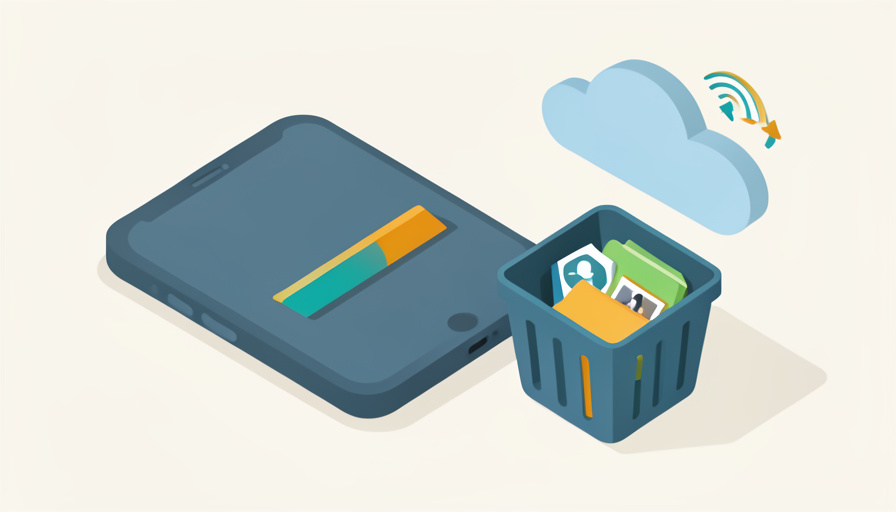

You delete a hundred photos and a couple of apps, glance at the storage bar, and it has barely moved. It feels like the phone is gaslighting you. It is not; the files just went somewhere you did not look.
That storage full even after deleting frustration usually has little to do with the files you can see. Deleting something rarely frees space right away, because most systems tuck it into a bin, a cache, or a cloud copy first. These are the eight traps that keep a device stuffed after a cleanup, on phones and computers alike, along with where the space is actually hiding and how to get it back.
Quick Take
- Deleting a file usually moves it to a trash or recently deleted bin, where it keeps taking up space until you empty it.
- Invisible categories like system data, app caches, and offline downloads often use more space than your own files.
- Cloud sync can quietly restore what you deleted, and offloading an app keeps its data behind.
Table of Contents
How We Chose These
We gathered the traps that most often explain a storage bar that will not budge after a cleanup, across iPhone, Android, and computers. Each one is a place space hides in plain sight, and each has a fix you can do yourself without special tools. They run roughly from the most common surprise, the recently deleted bin, to the ones people almost never think to check.
1. It’s Still Sitting in a Recently Deleted Bin
This is the big one. Deleting a photo or file usually moves it to a holding bin rather than erasing it, and that bin still counts against your storage. Google Photos, for example, keeps deleted items in the trash for 30 days, and Apple’s Photos and your computer’s Recycle Bin or Trash work the same way. Empty those bins and the space finally comes back.
2. System Data Is Quietly Hoarding Gigabytes
On phones, a category called System Data or Other can swell to tens of gigabytes with caches, logs, and temporary files that never appear in your photo or app lists. It is often the single largest user of space on a full iPhone. Apple’s guide to checking and optimizing storage helps, and a simple restart clears a surprising amount of that temporary bloat.
3. App Caches Balloon in the Background
Browsers, streaming apps, and social feeds store cached data so they load faster, and that cache can grow into gigabytes without you noticing. The files are not ones you created, so deleting photos does nothing to them. Clear the cache inside each app’s settings, or offload the app, to reclaim that hidden space.
4. Downloaded Offline Media You Forgot About
Saved episodes, offline playlists, downloaded podcasts, and offline maps all live on the device until you remove them. It is easy to download a series for a flight and never delete it. Check each streaming and media app for a downloads section, since a few movies alone can account for many gigabytes.
5. Message Attachments Pile Up Automatically
Chat apps quietly save every photo, video, and voice note you receive. Over a year, a busy group chat can bury gigabytes of media in your storage, separate from your camera roll. Look in the app’s storage settings for a way to review and clear large attachments rather than scrolling back through years of messages.
6. The Cloud Keeps Putting Files Back
If a file syncs to a cloud service, deleting the local copy can prompt the sync to restore it, or the space stays reserved by a placeholder. Cloud services also keep their own trash for weeks. When you clear space, check the cloud app’s settings and its online trash too, or the same files quietly reappear on your next sync.
7. You Offloaded the App but Kept Its Data
Removing an app is not always a full delete. Offloading, in particular, removes the app’s program while keeping its documents and data so you can reinstall later without losing anything, which means much of the space stays used. If you truly want the room back, delete the app fully rather than offloading it.
8. On a Computer, Temp Files and Downloads Add Up
Laptops have their own hiding spots: a full Recycle Bin or Trash, a bloated Downloads folder, leftover installers, and temporary system files. Windows includes tools to free up drive space, and both Windows and Mac hold deleted items in a bin until you empty it. Clear those out before assuming the drive is genuinely full.
The Takeaways
- Deleting usually moves files to a bin that keeps using space until you empty it.
- System data, app caches, offline downloads, and message attachments often outweigh your own files.
- Cloud sync and cloud trash can restore or reserve space you thought you cleared.
- Offloading an app keeps its data, so delete fully when you need the room, and empty every bin.
Frequently Asked Questions
Why is my storage still full after I deleted everything?
Usually because the files moved to a recently deleted or trash bin that still counts against your space, or because the real culprit is system data, caches, or downloads you did not touch. Empty the bins first, then look at those hidden categories, and give the device a minute to recalculate.
What is System Data on my phone?
System Data, sometimes labeled Other, is a catch-all for caches, logs, and temporary files the operating system creates. It can grow to tens of gigabytes and does not show up as photos or apps. Restarting the phone and clearing app caches usually trims it, though some of it is normal and unavoidable.
Does deleting photos free up space right away?
Not immediately. On most phones, deleted photos sit in a recently deleted album for about 30 days before they are erased, and they take up space the whole time. To reclaim it now, open that album and delete the items permanently, then let the storage figure update.
Why does storage go back up after I clear it?
Often it is cloud sync restoring files you deleted locally, or apps rebuilding their caches as you use them. Check your cloud service’s settings and online trash, and remember that active apps will slowly cache data again. Persistent regrowth points to sync or a specific heavy app rather than your own files.
Is offloading an app the same as deleting it?
No. Offloading removes the app’s program but keeps its documents and data, so it frees only part of the space and lets you reinstall later without losing anything. Deleting removes the app and its data together. When you need maximum space, choose delete rather than offload.
Empty the Bins, Then Check the Clouds
A storage bar that ignores your cleanup is not broken, it is just counting things you cannot see. Empty the recently deleted bins, clear app caches and old downloads, and check whether a cloud service is quietly syncing files back. Work through these eight spots and the space you thought you freed finally shows up. For more everyday fixes for your phone and laptop, browse Wayodd’s General section.


























































No Comments
Leave a comment Cancel