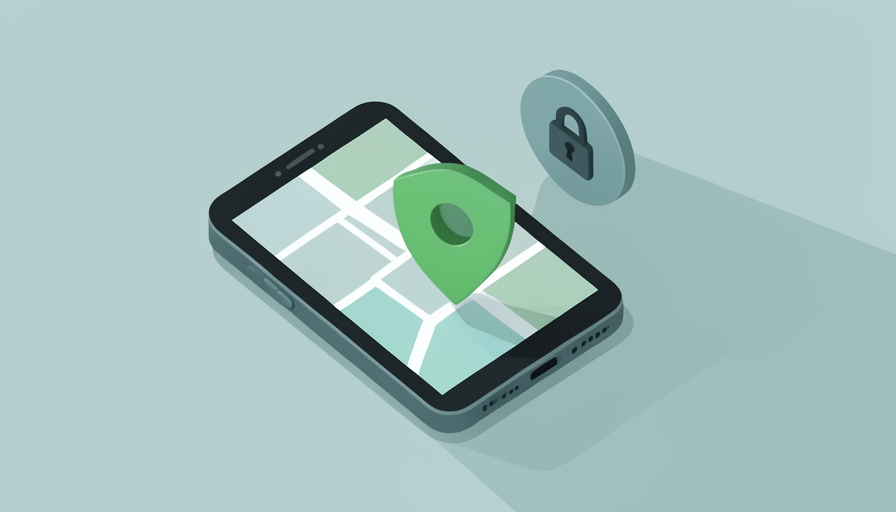

Find My exists for a good reason. It reunites people with lost phones, helps families coordinate, and lets you track down keys you dropped somewhere between the car and the couch. But the very thing that makes it useful, quietly knowing where a device or a small tag is, is also what makes it easy to misuse. A shared location left switched on, a tag slipped into a bag, an account someone else can still see: the feature does not care whether the person watching is welcome. It just reports the location.
The Find My tracking abuse settings covered here show how the feature gets turned against people, and for each one, the exact setting that shuts it down. The goal is not to make you fear your phone but to hand you back the controls, so that who can see your location is a decision you make on purpose. Here are eight ways Find My and its trackers get abused, and how to lock each one down.
Quick Take
- Most abuse comes from location sharing that was left on, a shared or compromised account, or a hidden tracker, not from a phone “malfunction.”
- Apple’s Safety Check is the fastest way to review and stop everyone who can see your location and access your account at once.
- If someone tracking you might react dangerously, plan your safety first, since abruptly cutting access can alert them; a support advocate can help.
A note on safety: if you believe someone monitoring you could become dangerous, consider reaching out to a domestic-abuse support service or local authorities before changing settings, because suddenly turning off sharing can tip off an abuser. In immediate danger, contact your local emergency number. This article is general privacy information, not a substitute for professional safety planning.
Table of Contents
1. Location Sharing Left On After a Relationship
The most common misuse is the simplest: you shared your location with a partner or friend, and it was never turned off. Months later they can still watch where you go. The fix is to audit who can see you. In Find My, open the People tab and review everyone listed; remove anyone who should no longer have access with Stop Sharing My Location. Also check Settings, under your name and Find My, to see and change your own sharing. Doing this periodically, rather than only after a breakup, keeps your location list matching the people you actually trust.
2. A Hidden AirTag or Tracker Planted on You
A small tracker slipped into a bag, a coat pocket, or a car can report your location to someone else. Modern phones fight this: an iPhone alerts you when an unknown compatible tracker is moving with you over time, and Android now detects unknown trackers too. Take those alerts seriously, and you can trigger a manual scan in the Find My app under Items. If you find a tag, you can make it play a sound to locate it and hold your phone near it to read instructions and its identifier. If it was planted to track you, preserve it as evidence and contact authorities rather than simply discarding it.
3. A Shared Apple Account Exposing Everything
Couples sometimes share one Apple Account, or one person set up the other’s device, which can hand over location, messages, photos, and more. If your account is shared, your location is not really private. The fix is to have your own account with a password only you know. Move to a separate Apple Account if you are sharing one, and check Settings for any devices signed in that you do not recognize or control. An account that is truly yours alone is the foundation everything else rests on, since shared credentials undo every other setting.
4. A Compromised Password Giving Full Access
If someone knows or guesses your Apple Account password, they can sign in and see your devices in Find My from anywhere, no tag required. This is why a person can seem to track you even when you have adjusted other settings. Change your password to something only you know, and turn on two-factor authentication so a password alone is not enough to get in. Then review the list of devices signed into your account and remove any you do not recognize. Cutting off account access closes the widest door an abuser can use.
5. Family Sharing Used to Monitor
Family Sharing is designed for households, but its location features can be used to keep tabs on an adult who did not really consent. Review whether you are part of a Family Sharing group and what it exposes, and remember that location sharing within a family is a separate toggle you can turn off. If being in the group is a problem, you can leave it, or stop sharing your location with the organizer while remaining for other purposes. The point is to make family location a mutual choice rather than a default someone else set for you.
6. “Notify When Left Behind” and Location Alerts
Find My can send notifications about a device or person’s movements, such as alerts when someone arrives at or leaves a place. In the wrong hands, these turn location into a live feed of your routine. Check the Notifications settings within Find My for any alerts set on your location that you did not create, and remove them. Also review, in the People tab, whether anyone has set arrival or departure notifications tied to you. Turning these off stops your daily pattern from being quietly broadcast to someone watching for it.
7. Significant Locations Revealing Your Habits
Your iPhone keeps a private history of places you frequent to power certain features. If someone has access to your unlocked phone or your account, that history can reveal your home, work, and routines. While this data is meant to stay on your device, it is worth knowing where it lives: in Settings under Privacy and Security, Location Services, then System Services and Significant Locations, where you can review and clear it. Protecting it comes back to a passcode only you know and an account only you can access, so no one can browse your movement history behind your back.
8. An Old or Secondary Device Still Signed In
A tablet, an old phone, or a computer left signed into your account can quietly show your location to whoever holds it. People forget these devices exist, and an ex or family member may still have one. In your Apple Account settings, review the full list of devices signed in and remove any you do not physically control or recognize. Signing out a forgotten device cuts its access to Find My and your account. Pair this with a password change so a removed device cannot simply sign back in, and your location stops appearing on screens you do not own.
The Fastest Fix: Apple’s Safety Check
If reviewing each setting feels overwhelming, Apple built a single tool for exactly this situation. Safety Check, found in Settings under Privacy and Security, lets you quickly see who you are sharing with and what apps have access, and stop it all at once with an emergency reset if needed. It is designed with abusive situations in mind, and it walks you through revoking access to your location and accounts in one place. Use it as your starting point, then work through the specific settings above to confirm nothing was missed. It is the closest thing to a single off switch for unwanted tracking.
Frequently Asked Questions
Can someone track my iPhone without me knowing?
It is possible if they have certain access, which is why reviewing your settings matters. The usual routes are location sharing you left enabled, a shared or compromised Apple Account they can sign into, a hidden tracker moving with you, or an old device still signed in. What they cannot easily do is track a phone with no shared location, a private account protected by two-factor authentication, and no planted tag. Working through who can see you in Find My, securing your account, and checking for unknown trackers closes the common paths. If you suspect monitoring, Apple’s Safety Check reviews these exposures in one place.
How do I know if there’s a hidden AirTag tracking me?
Your phone helps here. An iPhone shows an alert when an unknown compatible tracker has been moving with you for a while, and Android phones now detect unknown trackers as well. You can also open the Find My app, go to Items, and use the option to scan for nearby items that are not yours. If a tracker is found, you can make it play a sound and hold your phone near it to get its details. If you believe it was planted to follow you, do not simply throw it away; keep it, note where you found it, and consider contacting authorities, as it may be evidence.
If I turn off location sharing, will the other person be notified?
Generally, when you stop sharing your location with someone, they are not sent a specific alert saying so, but your location will simply stop updating and may show as unavailable, which an attentive person can notice. This is why safety planning matters in an abusive situation: an abuser who is watching closely may realize access has been cut and react. If that is a risk, consider speaking with a domestic-abuse advocate first, who can help you time changes safely, rather than flipping settings abruptly. For most ordinary situations, though, quietly removing someone is straightforward and low-drama.
What is Apple’s Safety Check and who is it for?
Safety Check is a feature in iPhone settings built specifically for people who need to quickly review and cut off who can access their location, information, and accounts, including in abusive or controlling situations. It gives you a clear view of what you are sharing and with whom, lets you stop sharing selectively, and offers an emergency reset that revokes access broadly in one step. It is meant to make an otherwise scattered set of settings manageable under stress. Anyone can use it as a periodic privacy check, but it is designed above all for someone who needs to regain control fast.
Decide Who Sees You, on Purpose
Find My is not the enemy; unexamined settings are. Nearly every way it gets abused comes down to access that was left open, sharing you forgot, an account someone else can reach, or a device you no longer hold, and each of those has a specific control that closes it. Start with Safety Check to get a fast overview, then walk through the list: audit who can see you, secure your account with a fresh password and two-factor, scan for unknown trackers, and sign out old devices. And if the person tracking you might be dangerous, put your safety first and seek support before you act. For more on protecting your devices, browse Wayodd’s Mobile section.




























































No Comments
Leave a comment Cancel