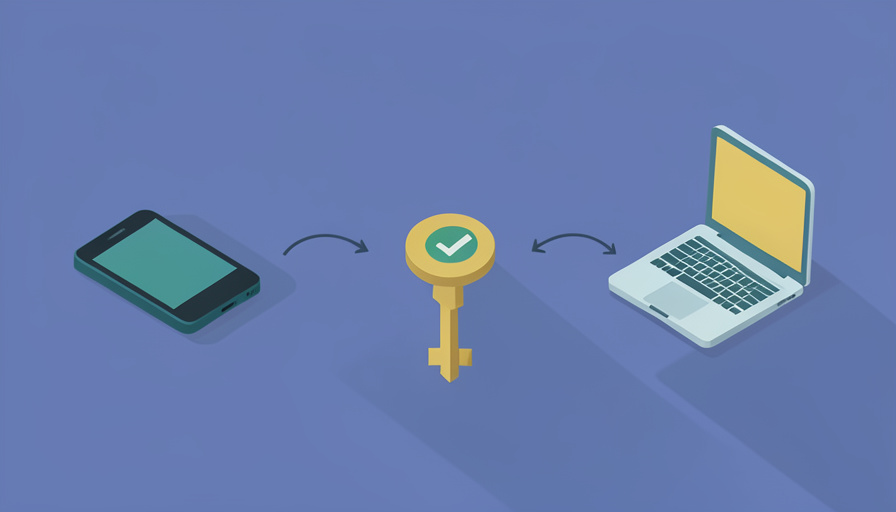

You set up a passkey on your iPhone, felt the little thrill of never typing that password again, then sat down at your Windows laptop to log in and found nothing there. The passkey exists, just not where you are. Passkeys are a genuine upgrade over passwords, but they live inside whichever ecosystem created them, and if your life spans an iPhone, an Android tablet, and a Windows PC, the one thing nobody explains is how the passkey is supposed to follow you. It does not always, unless you set it up to.
Comparing a few passkey settings cross platform before you switch everything to passwordless saves you from that exact surprise, where a passkey made on one device is invisible on another. The core issue is which service stores and syncs your passkeys, because Apple, Google, and Windows each keep their own, and they do not automatically reach across to one another. Here are eight settings to compare across iPhone, Android, and Windows first, so your passkeys actually work everywhere you do.
Quick Take
- The biggest setting is which service stores your passkeys, since Apple’s, Google’s, and Windows’ keychains sync only within their own ecosystems.
- For true cross-platform passkeys, a third-party password manager that works on all three is usually the cleanest answer.
- Also compare biometrics, the autofill provider, cross-device sign-in, and recovery, so a lost device never locks you out.
The 8 Settings to Compare Before You Begin
Check these across each device you use, since the answers differ by platform:
- Which service stores your passkeys. On iPhone it is iCloud Keychain, on Android it is Google Password Manager, and on Windows it can be Windows Hello or a password manager. This choice determines everything else, so know it on each device.
- Whether that service reaches all your devices. iCloud Keychain syncs across Apple devices but not to Windows or Android; Google’s syncs across Google; Windows Hello is often local. Confirm your chosen store actually covers your full device mix.
- Your biometric unlock. Compare how each device unlocks a passkey, Face ID or Touch ID on iPhone, a fingerprint on Android, and Windows Hello face, fingerprint, or PIN on the PC, and make sure each is set up.
- The autofill or credential provider. Each system has a setting for which app is allowed to provide passkeys and autofill them. If you use a third-party manager, you must enable it as the provider on every device, or it will not offer your passkeys.
- Cross-device sign-in. All three support using a phone’s passkey to sign in on another device nearby, via a scan and a Bluetooth handshake. Check this works, since it is the bridge when a passkey lives on a different device than the one you are using.
- Backup and recovery. Confirm what happens if you lose the device that holds a passkey, whether it is synced and restorable, and whether you have recovery codes or a second method, so a lost phone is not a locked account.
- Operating system and device support. Passkeys need reasonably recent versions of iOS, Android, and Windows. Check each device meets the requirements before relying on it, since an older one may not support them fully.
- Platform keychain versus a password manager. Decide whether to use each platform’s built-in store or a single third-party manager across all of them. This is the setting that most determines whether your passkeys are truly cross-platform or trapped per ecosystem.
At a Glance: How the Platforms Differ
| Setting | iPhone | Android | Windows |
|---|---|---|---|
| Default passkey store | iCloud Keychain | Google Password Manager | Windows Hello or a manager |
| Syncs within | Apple devices | Google account | Often local to the PC |
| Biometric unlock | Face ID / Touch ID | Fingerprint / face | Windows Hello / PIN |
| Cross-device sign-in | Yes, via scan | Yes, via scan | Yes, via scan |
| True cross-platform | Third-party manager | Third-party manager | Third-party manager |
Platform behavior and passkey support change with updates, so confirm the current settings on each of your devices before switching everything over.
The Cross-Platform Fix
If your devices span more than one ecosystem, the cleanest answer is usually a single third-party password manager that supports passkeys on all of them. Because it stores your passkeys in its own vault rather than Apple’s, Google’s, or Windows’ separate keychains, a passkey you create is available on every device where you install the manager and set it as the credential provider. That sidesteps the whole problem of ecosystem-locked passkeys. The trade-off is relying on that manager and securing it well, but for a genuinely mixed iPhone, Android, and Windows life, it is the most reliable way to make one passkey work everywhere.
Frequently Asked Questions
Do passkeys automatically sync between iPhone, Android, and Windows?
No, not across ecosystems by default. Passkeys sync within a platform’s own service, iCloud Keychain across Apple devices, Google Password Manager across Google, and Windows often keeping them locally, but these stores do not talk to each other. So a passkey created on your iPhone will not appear on your Windows PC or Android phone on its own. To have passkeys follow you across all three, you either use each platform separately, rely on cross-device sign-in with your phone, or store your passkeys in a third-party password manager that works on every platform, which is the smoothest route.
How do I use a passkey saved on my phone to log in on a computer?
Through cross-device sign-in, which all major platforms support. When a website asks for your passkey on a computer where it is not stored, you can choose to use a passkey from a nearby phone; the computer shows a code to scan, your phone confirms with your biometric, and a short-range Bluetooth link verifies you are nearby. The passkey itself stays on your phone. This is the bridge for when a passkey lives on a different device than the one you are using, so it is worth confirming it works before you need it in a hurry.
Should I use a password manager or the built-in keychains for passkeys?
It depends on your devices. If you live entirely within one ecosystem, the built-in keychain, iCloud, Google, or Windows, is simple and works well. If you mix platforms, a third-party password manager that supports passkeys across all of them is usually better, because it stores passkeys in one vault available everywhere rather than in separate per-platform stores. The manager route means one place to manage everything and true cross-platform access, at the cost of trusting and securing that manager. For a mixed iPhone, Android, and Windows setup, most people find the password manager approach far less frustrating.
What happens to my passkeys if I lose my device?
It depends on whether they were synced. If your passkeys live in a synced store, iCloud Keychain, Google Password Manager, or a cloud-based password manager, they are restored when you sign in on a new device, so a lost phone is an inconvenience rather than a lockout. If a passkey was stored only locally on the lost device, you would rely on recovery options or another registered method to get back in. This is exactly why checking backup and recovery before you commit matters: confirm your passkeys are synced and that you have a fallback, so losing hardware never means losing access.
Set It Up to Follow You Everywhere
Passkeys deserve the hype, but only once you have decided where they live, because a passkey that cannot follow you between your iPhone, Android, and Windows devices solves one login and breaks another. Before you flip everything to passwordless, compare the settings that matter: which service stores your passkeys, whether it reaches all your devices, your biometrics and autofill provider, cross-device sign-in, and recovery. For a truly mixed setup, a single third-party password manager is usually the answer. Sort that first, and passkeys become the effortless, everywhere login they are meant to be. For a related security decision, see our guide to passkeys versus authenticator apps for banking, or browse Wayodd’s Gadgets & Tech section.


































































No Comments
Leave a comment Cancel