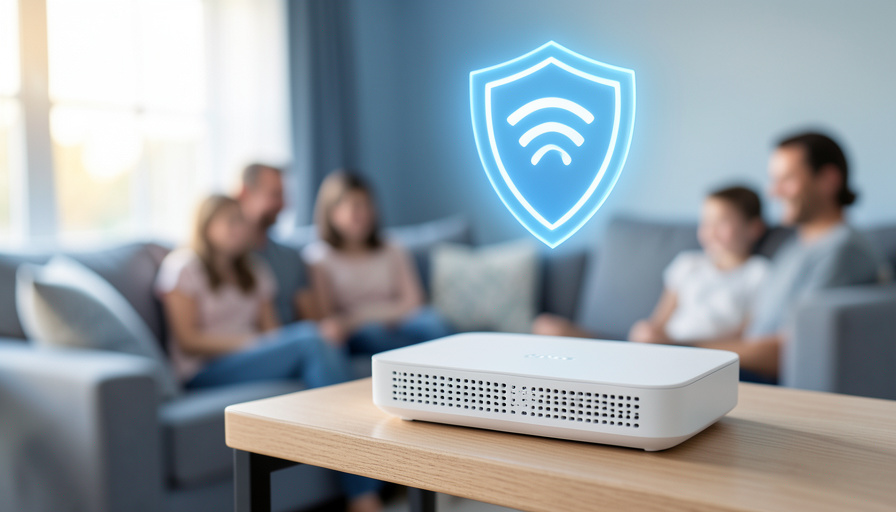

The 15 features that separate a parental-control router you will actually rely on from one a determined kid gets around in an afternoon.
A parental-control router manages every device on your home WiFi from one place, which is why families reach for one when the screen-time app on a single phone stops being enough. Before you buy, two truths set expectations: the router only controls traffic on your WiFi, so a phone on cellular data slips past it, and a motivated teenager can still look for the seams. The 15 features below are what decide how well it holds up, and which corners a kid can exploit.
Short Answer
- The features that matter most are per-child profiles, safe search enforcement, app-level blocking, and VPN detection, since those are the ones kids actually test.
- The quiet dealbreakers are MAC-address randomization (which breaks device rules) and a monthly subscription, which many routers require for the good controls.
- No router filters cellular data, so pair it with on-device controls like Google Family Link or Apple Screen Time.
At a Glance
| Feature | What to check |
|---|---|
| Per-child profiles | Rules tied to a person, not one blanket setting |
| MAC randomization handling | Profiles bound to accounts rather than MAC addresses |
| Category and age filtering | Age presets and a real category list |
| Safe search enforcement | Forced SafeSearch and YouTube Restricted Mode |
| App-level blocking | Block TikTok or Discord by app, not by site alone |
| Time limits and bedtime | Per-profile schedules and daily caps |
| Instant pause | One-tap pause for a profile |
| VPN detection | Deep packet inspection to block VPN tunnels |
| HTTPS filtering | Filtering on encrypted traffic, not domains only |
| DNS-level filtering | Network-wide coverage for every device |
| Usage reports | Readable per-child history |
| Subscription cost | Free-for-life versus a monthly fee |
| Mesh coverage | Whole-home coverage and device limits |
| Guest and IoT isolation | Separate networks for guests and smart devices |
| Setup and app quality | Controls simple enough that you use them |
Table of Contents
1. Per-child profiles

What to check: whether rules attach to a named child with their own devices, not one setting for the whole house.
Good profiles let you give a 9-year-old and a 15-year-old completely different limits, and move a new tablet under the right child in seconds. Gryphon and Netgear’s Smart Parental Controls both do this well. Without real profiles, every schedule and filter applies to everyone, which falls apart the moment your kids are different ages.
2. How it handles MAC randomization
What to check: whether profiles bind to an account or device fingerprint rather than a single MAC address.
This is the bypass parents hit most. Modern iPhones and Androids rotate a private WiFi MAC address by default, so a device tied to one MAC quietly reappears as a stranger with no rules. A thread with over a thousand replies on r/HomeNetworking exists precisely because kids discovered this. Look for a router that ties a child to an account and flags new devices, or that lets you require the real MAC per device.
3. Category and age filtering
What to check: the category list and whether age presets actually map to sensible defaults.
Every router blocks “adult” content, but the useful ones let you switch off gambling, violence, or mature social feeds by category and start from an age-based preset you then adjust. Skim the category list before buying, because vague ones miss a lot.
4. Safe search and YouTube enforcement

What to check: whether the router forces SafeSearch and YouTube Restricted Mode at the network level.
Network-level enforcement means the setting holds even when a child turns it off inside the app, which app-only controls cannot promise. Gryphon enforces safe search and YouTube restrictions across the whole profile. This one quietly does a lot of work with no daily effort from you.
5. App-level blocking
What to check: whether you can block a named app like TikTok or Discord rather than its website alone.
Blocking a website does little when the app talks to its servers directly. App-level blocking needs deep packet inspection, which is why it shows up on parental-first routers like the Gryphon AX and not on most standard mesh systems. If a specific app is your worry, confirm it by name before buying.
6. Time limits and bedtime schedules
What to check: whether schedules are per-profile and whether you can set both daily caps and offline windows.
The best systems separate a nightly bedtime cutoff from a daily time budget, and apply both per child. Check whether limits are per-device, per-profile, or per-app, because a per-device cap is easy to dodge with a second device. Per-profile is the version that holds.
7. Instant pause
What to check: whether the app has a one-tap pause for a profile and how fast it takes effect.
Pause is the feature parents use most: dinner, homework, or a sudden attitude adjustment. You want it to hit one child’s devices instantly without knocking the whole house offline. Test how many taps it takes in the app demo or reviews.
8. VPN detection and blocking

What to check: whether the router uses deep packet inspection to detect and block VPN traffic.
A VPN tunnels straight past every filter you set, and older kids know exactly how to install one. Only routers with deep packet inspection can spot and block that traffic; a basic router cannot see inside the tunnel. If you skip this feature, treat every other filter as optional for a determined teenager.
9. Encrypted traffic filtering
What to check: whether filtering works on encrypted HTTPS traffic or only on domain names.
Nearly all web traffic is encrypted now, so a router that only reads domain names sees far less than one performing deep packet inspection. That difference decides whether a filter can act on what a page actually contains. Ask whether the parental controls inspect HTTPS or stop at the domain.
10. DNS-level filtering

What to check: whether the router filters at the DNS layer so every device on the network is covered.
DNS filtering catches all traffic on your WiFi, including devices that never install an app, which makes it broad and low-effort. The weakness is that a manual DNS change or a VPN slips around it, so treat DNS filtering as the floor and pair it with VPN detection, not as your whole defense.
11. Usage reports and history
What to check: how far back the history goes and whether the per-child reports are readable.
Activity reports tell you which apps and sites a child uses and for how long, which is often more useful than blocking. Check whether the history is a clear daily summary or an unreadable log, and how many days it keeps.
12. Subscription cost
What to check: whether the parental controls are free for the life of the router or gated behind a monthly fee.
This is the cost nobody mentions upfront. Gryphon Premium runs about $7.50 a month, and Netgear Smart Parental Controls and eero Plus also charge on a subscription, while ASUS AiProtection and TP-Link HomeShield include basic parental controls free for the life of the router. Decide whether the advanced features are worth a recurring bill before you commit.
13. Mesh coverage and device limits
What to check: whether it covers the whole home and how many devices it handles at once.
A dead zone in the basement is a place where the rules do not reach, so coverage is a safety feature here. Confirm mesh support if your home is large, and check the device ceiling if you have a full house of phones, tablets, consoles, and smart gear.
14. Guest and IoT isolation
What to check: whether it offers a separate network for guests and smart-home devices.
Keeping visitors and smart plugs on their own network keeps them out of your children’s profiles and reduces the clutter you have to manage. It also limits what a compromised smart device can reach. This one is about tidiness and security more than filtering, but it makes the whole system easier to run.
15. Setup and app quality

What to check: how quickly a non-technical parent can set it up and make daily changes.
The best controls are the ones you actually use, and a clumsy app means you stop touching the settings. Amazon eero is the simplest to set up, while deeper systems like Firewalla trade some simplicity for control. Read recent app reviews, because a great feature list behind a frustrating app helps no one.
What a parental-control router can’t do
Set expectations honestly, because the gaps are the point.
- It does not touch cellular data. The second a phone leaves your WiFi for a mobile network, the router sees nothing, so pair it with Google Family Link or Apple Screen Time on the device itself.
- It does not stop a determined teen. A VPN, a spoofed MAC address, or a friend’s hotspot all get around it. A good router raises the effort; it does not guarantee compliance.
- It does not replace a conversation. Controls set defaults and buy time, but they do not teach judgment, and kids age out of them either way.
How We Chose These
We built this list around the household buying decision, not a single product, and weighted the features that real families test in practice: profiles, enforcement that holds outside the app, and the bypass routes kids actually use. We leaned on where parents run into walls, especially MAC randomization and VPN evasion, and we kept the practical costs visible, including subscriptions that only show up after purchase. Features that sound good but rarely get used ranked lower than the plumbing that quietly works every day.
The Bottom Line
If you want the deepest controls and the fewest bypasses, prioritize profiles, safe search enforcement, app-level blocking, and VPN detection, which points toward a parental-first router like Gryphon and usually a subscription. If budget matters more, an ASUS or TP-Link router covers the basics free for life, with fewer teen-proof features. Whatever you pick, remember the router guards the WiFi only, so add on-device controls for phones and keep talking to your kids. For related family-tech guidance, see our take on Life360 alternatives that respect a teen’s privacy and AirTag alternatives for Android family tracking.
Frequently Asked Questions
What features matter most in a parental control router?
Per-child profiles, safe search and YouTube enforcement, app-level blocking, and VPN detection matter most, because those are the features kids actually test. Beyond those, check how the router handles MAC-address randomization and whether the good controls require a monthly subscription. Those two decide how well the system holds up and what it really costs.
Can kids bypass a parental control router?
Yes, and the common routes are worth knowing. Kids switch a phone to cellular data, install a VPN, spoof or rotate the device MAC address, or use a friend’s hotspot. A router with deep packet inspection can block VPNs and better handle MAC randomization, but no router covers cellular data, so pair it with on-device controls.
Do parental control routers require a subscription?
Some do and some do not. Gryphon Premium, Netgear Smart Parental Controls, and eero Plus charge a monthly or annual fee for their advanced controls, while ASUS AiProtection and TP-Link HomeShield include basic parental controls free for the life of the router. Check this before buying, since the subscription is easy to miss.
Will a parental control router work on my kid’s phone?
Only while the phone is on your home WiFi. The router filters and schedules everything on your network, but the moment the phone uses cellular data, the router has no visibility. For full coverage, combine the router with an on-device tool like Google Family Link or Apple Screen Time.
Is a router better than a parental control app?
They do different jobs, so the strongest setup uses both. A router manages every device on the WiFi from one place and enforces rules the app cannot turn off, while an on-device app follows the phone onto cellular and controls app installs. Use the router for the home network and the app for the phone itself.
What To Do Next
Make a short list of the features your household actually needs, then check each router against them in this order: profiles, safe search enforcement, app blocking, VPN detection, and the subscription price. Buy for the controls that hold up rather than the marketing, add an on-device tool for phones that leave the house, and treat the router as one layer in a plan that still includes talking to your kids. For more family and home guidance, browse Wayodd’s Family & Personal section.






























































No Comments
Leave a comment Cancel